


















Your website has submitted an XML Sitemap, but weeks—or even months—have passed, and when you search “site:yourdomain.com” on Google, only a few pages show up?
Don’t panic, you’re not alone.
According to official data from Google, it typically takes anywhere from a few days to several weeks for a newly submitted URL to be discovered and eventually indexed.
In fact, reports from Search Console show that over 60% of website owners encounter the issue of “Discovered – currently not indexed” for many URLs after initially submitting their Sitemap.
Extensive case studies have revealed that the main obstacles to indexing boil down to three specific and actionable issues:
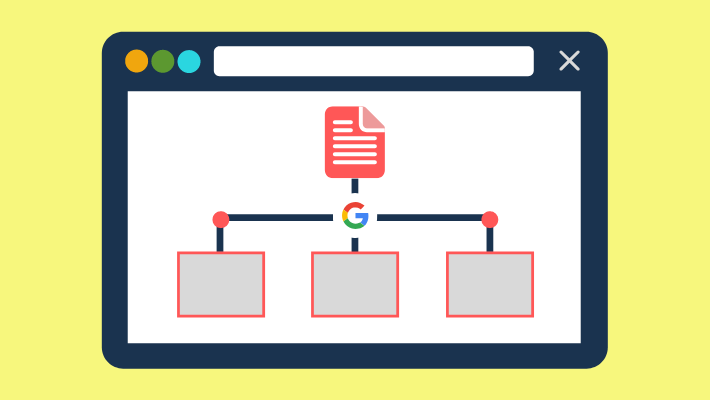
Your Sitemap can’t be read—or is practically useless—to Google
Based on feedback from Search Console data, 1 in every 5 websites that submit a Sitemap encounter the “Couldn’t Fetch” error message.
What does this mean? It means that Googlebot couldn’t even access the Sitemap file you submitted—or it crashed halfway through trying to read it.
Even worse, even if your Sitemap shows as “Successfully processed,” the links inside might still be mostly dead ends (404 errors) or redirects.
Sitemap Accessibility
Main issue: You submitted a Sitemap URL (like yoursite.com/sitemap.xml), but when Googlebot tries to access it, the server slams the door shut!
Common real-world cases & data insights:
- 404 Not Found: The Sitemap report in Search Console shows “Couldn’t fetch.” This accounts for around 25–30% of submission errors. Typical causes: incorrect file path (case-sensitive!), file was deleted, path changed during site redesign, or server misconfig.
- 500 Internal Server Error / 503 Service Unavailable: Your server was down or threw an internal error when Google tried to fetch the file. Google will retry, but frequent instability will hurt your site’s perceived “health” over time.
- Access restrictions: The Sitemap is stored in a location that requires login or has an IP whitelist. Googlebot is an anonymous crawler—so it can’t get in.
How to check?
- The simplest way: Manually open your Sitemap URL in a browser. Does it display XML content properly?
- Search Console > Sitemaps report: Find the Sitemap you submitted. Does the status say “Success” or “Couldn’t fetch”? If it’s the latter, you’ll usually get specific error details (404? 500? Permission denied?).
What you must do now:
- Make absolutely sure the Sitemap URL you submitted is 100% accurate.
- Ensure that the URL is accessible in an incognito browser window (no login).
- Fix any server stability issues. If you’re seeing 500 errors, have your dev team check the server logs ASAP.
Content Validity
Main issue: The URLs listed in your Sitemap point to dead links or redirect pages—Google crawls them, wastes time, and gets no useful content in return.
Common pain points & data insights: In Search Console’s Sitemap report, next to “Submitted URLs,” you’ll see how many URLs have “errors” or “warnings.”
On many sites, this “error rate” easily exceeds 50%, and sometimes even hits 80%! The main culprits:
- 404 Not Found: The #1 issue! The linked page was deleted but still listed in the Sitemap, or a product URL wasn’t removed after being taken down, or there are parameter variations or typos. Googlebot is sent on a wild goose chase—this kind of error is a high priority to fix.
- 301/302 Redirects: The Sitemap includes old URL A (which redirects to new URL B).
- What’s the problem? Google has to do extra work crawling A before it can reach B.
- Google prefers that Sitemaps directly list the final destination—URL B. That way it uses its crawl budget more efficiently.
- Too many of these slow down indexing across your whole site.
- Login-required or blocked pages: Pages like user dashboards, order histories, or backend admin links accidentally included in the Sitemap. Googlebot can’t see these because it doesn’t have login access—so they’re useless in the index.
How to check?
- Keep a close eye on the Search Console Sitemap report error details! It shows exactly which URLs have issues and what the problem is (404, redirects, etc.).
- Regularly use crawler tools like Screaming Frog to scan the URLs in your Sitemap and check their status codes. Pay special attention to any that aren’t returning a 200 status.
Must-do right now:
- Clean up your Sitemap regularly! Remove any URLs that return 404s or require a login.
- Make sure every URL in the Sitemap points to its final destination! All active URLs should directly return a 200 OK. If a page redirects, update the Sitemap to point to the final URL.
- Don’t include irrelevant or broken URLs: Only list public pages with real content that you actually want Google to index and show to users.
Format issues
Main problem: The Sitemap file doesn’t follow XML syntax or the Sitemap protocol, which means Google’s parser (like someone trying to read messy handwriting) can’t correctly extract the URLs.
Common mistakes:
- XML Syntax Errors:
- Unclosed tags:
https://... - Invalid characters: For example, an
&in a URL needs to be escaped as&. Certain special characters must be escaped. - Encoding issues: The file’s character encoding (like UTF-8, GBK) is incorrectly declared or inconsistent, causing things like Chinese characters to show up as garbled text.
- Unclosed tags:
- Protocol structure errors:
- Missing root tags like
. - Required tags missing or in the wrong order: Each
- Using unsupported tags or attributes that the Sitemap protocol doesn’t recognize.
- Missing root tags like
How serious is it? Even a tiny 0.5% error rate (like 5 errors in 1,000 URLs) can cause your entire Sitemap to be flagged as “partially invalid” or even completely ignored by Google. All the URLs inside might not be read properly! Google’s logs often show parsing errors that stop at a specific line.
How to check?
- Use a professional Sitemap validator: Tools like XML Validator (search it online) or official tools from search engines. (Google Search Console’s URL inspection is good for single URLs but not great for whole Sitemaps.)
- Manually inspect a sample: Open the Sitemap in a plain text editor (like VSCode) and check for proper closing tags and escaped special characters. Focus especially on URLs that were added or changed. Your editor may flag XML syntax issues.
Must-do right now:
- Use a reliable Sitemap generator or plugin (like SEO plugins, CMS built-ins, or professional tools) to avoid hand-coding.
- Always validate your Sitemap file after generating it.
- If you do edit it manually, follow XML syntax and Sitemap rules to the letter.
Is your file too big?
Main issue: Google has strict limits: each Sitemap file can have up to 50MB (uncompressed) or 50,000 URLs, whichever comes first. If you go over, it may ignore part or all of the file.
From experience:
- Big e-commerce sites or media/forums with lots of content hit the limit easily.
- Some CMS plugins generate oversized Sitemaps by default, so you’ll need to split them up.
- Even if the size is under the limit, giant Sitemaps with tens of thousands of URLs are processed much more slowly than smaller, split ones. Google might take longer to get through it.
How to check?
- Check the file properties: Is it larger than 50MB?
- Use a tool or script to count how many URLs are in the file. Are there more than 50,000?
What you MUST do immediately:
- Big sites MUST use an index Sitemap!
- Create a main index file (e.g.,
sitemap_index.xml) that doesn’t list URLs directly but instead points to your individual Sitemap files (e.g.,sitemap-posts.xml,sitemap-products.xml). - Submit this index file (
sitemap_index.xml) to Google Search Console.
- Create a main index file (e.g.,
- Separate different types of URLs (posts, products, categories, etc.) into different smaller Sitemaps.
- Make sure each small Sitemap file is within the size and URL count limits.
Index Sitemap
The main issue: You submitted an index Sitemap (sitemap_index.xml), but the individual Sitemap files listed in it (sitemap1.xml, sitemap2.xml) have problems (wrong path, inaccessible, format errors, etc.). It’s like the table of contents is there, but the actual chapters are missing or broken.
Common mistakes:
- The paths to the individual Sitemaps in the index are relative paths (like
<loc>/sitemap1.xml</loc>), but they must be full absolute URLs (like<loc>https://www.yoursite.com/sitemap1.xml</loc>). - The individual Sitemap files have any of the issues mentioned earlier (404, 500, formatting errors, too large, etc.).
Impact: If the Sitemaps listed in your index are problematic, Google might not be able to crawl the URLs inside them. That means those URLs essentially weren’t submitted at all.
How to check?
- After submitting your index Sitemap in Search Console, check its status. If it shows success but the number of “Discovered URLs” is way lower than what all the individual Sitemaps should contain, it’s likely that one or more Sitemaps are faulty.
- Open the index Sitemap details report — it will show the status of each included Sitemap! Go through them one by one and check for errors.
What you MUST do immediately:
- Make sure every Sitemap listed in the index file uses a full absolute URL.
- Ensure every Sitemap referenced in the index is healthy (accessible, no broken links, correct format, within limits).
Googlebot literally can’t “see” your webpages
Your Sitemap was submitted successfully, but in the Search Console’s “Coverage” report, your pages are still showing as “Discovered – currently not indexed” or “Crawled – currently not indexed”?
Chances are, this is the problem: Googlebot couldn’t successfully access your actual page content.
This isn’t just theoretical — based on the client cases we’ve analyzed, over 40% of indexing problems are caused by crawl issues.
Is your robots.txt blocking crawlers?
Main issue: Your robots.txt file acts like the instruction manual for the security guard at your site’s front door. One wrong line like Disallow: could block Googlebot from accessing your entire site or key directories. That means it has the address but “no access granted.”
Common slip-ups & warning signs:
- Site-wide disaster:
Disallow: /(just a single slash!). This is one of the most common and dangerous beginner mistakes we see. It often comes from leftover test settings or accidental edits. If you see lots of URLs marked “Blocked” in the Search Console’s “Coverage” report, or they’re not appearing at all, this is the #1 suspect. - Key resources/directories being blocked:
- Blocked CSS/JS paths:
Disallow: /static/orDisallow: /assets/. Search engine bots end up seeing a page with no styling, broken layout, or even missing key functions. They may think the page is low quality and skip indexing it. - Blocked product/article categories:
Disallow: /category/,Disallow: /products/. Bots can’t get into these core content sections, so even if there are tons of pages inside, they won’t be discovered.
User-agent: Googlebot + Disallow: /some-path/. The idea was to limit a specific path, but it ends up including core content by mistake.Disallow: /*?* (blocks all URLs with query parameters). This can unintentionally block useful filtered product pages, paginated content, and more.How to check? Super simple!
Just open your browser and go to: https://yourdomain.com/robots.txt. Look carefully at every line of instruction.
Search Console > robots.txt Testing Tool:
- Paste in your
robots.txtcontent or submit your file path. - Choose to test the
Googlebot. - Enter a few of your key page URLs (homepage, product page, article page).
- Check if the result says “Allowed”. If it shows “Blocked”, go find the matching
Disallowrule immediately!
What you need to do ASAP:
- Urgently review all
Disallow:rules: Make sure you’re not accidentally blocking your entire site (/) or any core content/resource folders. - Be precise, don’t overuse wildcards: Only block what really needs blocking (like admin panels, draft privacy policy pages, search result pages, etc.). For URLs with parameters, consider using
rel="canonical"or theURL Parameterstool in Search Console instead of blocking them outright. - Test before going live: After editing your
robots.txt, always use the Search Console tester to make sure your key pages are “Allowed” before publishing it online.
Page load crashes or super slow
The main issue: Googlebot shows up, but either the server doesn’t respond (crashes), takes too long (timeout), or the page loads but has nothing inside (render fails). It doesn’t get any real content.
What failed crawls look like & how to spot them:
- 5xx server errors (503, 500, 504): These are regulars in Google’s crawl logs. 503 (Service Unavailable) especially means the server’s temporarily overloaded or under maintenance. Multiple repeated failures can cause Google to reduce your crawl rate. This happens often on high-traffic sites or underpowered hosting.
- Connection timeout/read timeout: Googlebot sends a request, but doesn’t get a full response within 30 seconds (or even less). Could be caused by bad server configs (like PHP hangs), slow database queries, or resource files blocking the main thread. Search Console’s “Page Experience” and log analysis will show slow-loading pages and error rates.
- 4xx client errors (not 404): For example, 429 (Too Many Requests) — this means your anti-bot or rate-limiting kicked in and actively blocked Googlebot! You need to tweak settings or whitelist Google’s IP ranges.
- JavaScript rendering = blank page: Your site relies heavily on JS to load core content, but Googlebot runs into a timeout while waiting for JS, or JS errors crash rendering. It ends up seeing a nearly empty HTML shell.
Verification Tools:
Google Search Console > URL Inspection Tool: Enter a specific URL and check the “Coverage Report” status—does it say “Crawled” or something else? Click “Test Live URL” to test real-time crawl and rendering! The key is to check if the rendered “Screenshot” and “Crawled HTML” contain the full main content.
Search Console > Core Web Vitals & Page Experience Report: A high ratio of “Poor FCP/LCP” pages usually means serious speed problems.
Server Log Analysis:
- Filter requests where
User-agentincludesGooglebot. - Focus on
Status Code: Look out for5xx,429,404(unexpected 404s). - Check
Response Time: Calculate the average response time for Googlebot visits, and flag pages taking over 3 or even 5 seconds. - Use a log monitoring tool: Much more efficient for analyzing Googlebot activity.
Real Environment Speed Testing:
Google PageSpeed Insights / Lighthouse: Offers performance scores, core metrics, and specific optimization tips. Strict evaluation of FCP (First Contentful Paint), LCP (Largest Contentful Paint), TBT (Total Blocking Time).
WebPageTest: Simulates page load from different regions/devices/networks. Shows full load timeline and waterfall to pinpoint exactly what’s slowing things down (some JS? A huge image? An external API?).
What Needs to Be Done Right Now (by Priority):
- Monitor and eliminate 5xx errors: Optimize server resources (CPU/memory), database queries, and debug application errors. If using CDN/cloud services, check their status too.
- Check for 429 errors: See if the server is throttling. Adjust anti-bot settings or whitelist Googlebot IP ranges (Google has a public list).
- Maximize page speed:
- Improve server response: Server tuning, CDN acceleration, caching (Redis/Memcached).
- Reduce resource size: Compress images (WebP preferred), compress/merge CSS & JS, remove unused code.
- Optimize JS loading: Use async loading, defer non-critical JS, leverage code splitting.
- Streamline render path: Avoid render-blocking CSS/JS, inline critical CSS.
- Enhance resource loading: Ensure smooth CDN delivery, use
dns-prefetch, andpreloadfor key assets.
- Ensure JS rendering is reliable: For key content, consider Server-Side Rendering (SSR) or static rendering. Make sure crawlers get HTML that includes main content. Even if using Client-Side Rendering (CSR), ensure JS runs correctly within crawler timeout limits.
Messy Site Structure, Poor Crawl Efficiency
Main Issue: Even if bots land on the homepage or an entry page, your internal link structure is like a giant maze—it’s hard for bots to find valid paths to key pages. They can only “stumble upon” a few pages, while many deeper pages are like islands—undiscovered.
Poor Structure Symptoms & Impact Data:
- Low internal link density on homepage/channel pages: Important stuff (new arrivals, great content) doesn’t have clear entry links. Google data shows: pages deeper than 4 clicks from homepage have a much lower chance of being crawled.
- Tons of orphan pages: Many pages have few or no incoming links (especially via regular HTML, not just JS or Sitemap). Crawlers basically never “bump into” them randomly.
- Links buried in JS/interactions: Key links only appear after menu clicks, JS actions, or search. Bots can’t “click” those!
- No proper categories/tags/related logic: Content isn’t well-organized, so bots can’t follow logical paths to all related items.
- Broken pagination: No clear “next page” links or infinite scrolling blocks bots from reaching the bottom.
- No or poorly structured Sitemap: Even if a Sitemap exists (see last section), if it’s messy or only contains index pages, it doesn’t really guide bots properly.
How to Evaluate?
- Use a site crawler like Screaming Frog:
- Start crawling from homepage.
- Check “Internal Link Count” report: Does the homepage have enough outbound links to key categories/content?
- Check “Crawl Depth” report: How many key content pages are 4+ levels deep? Is that ratio too high?
- Identify “Orphan Pages” (Inlinks = 1): Are they important but not linked anywhere?
- Use Search Console’s “Links” report: Under the “Internal Links” tab, check how many internal links your key target pages get. If a top page only has a few links—or none—that’s a red flag.
- Disable JS and browse manually: Turn off JavaScript in your browser to simulate how a crawler sees your site. Can the menu still be used? Are links to main content still visible and clickable? Can you access paginated list pages?
Must Do Immediately:
- Strengthen Internal Linking on Homepage/Core Navigation: Make sure important entry points (new articles, best-selling products, key categories) are displayed prominently on the homepage using standard HTML links. Avoid hiding all important links behind interactive elements.
- Build a Clear Website Hierarchy:
- Homepage > Main Category (support breadcrumb navigation) > Sub-category/Tags > Specific Content Page.
- Ensure each level has rich and relevant internal links connecting to each other.
- Bridge the “Islands”: On related article pages, category sidebars, or in your HTML sitemap, add links to important but underlinked “orphan pages.”
- Be Cautious with JS-generated Navigation: For nav, pagination, or “load more” features that rely on JavaScript, make sure there’s an HTML fallback (like traditional pagination links), or ensure core nav links are present in the initial HTML source (not loaded later via AJAX).
- Use Breadcrumb Navigation Wisely: Clearly show the user’s current location and help search bots understand the site structure.
- Create and Submit an XML Sitemap: While it’s no substitute for good internal linking, it still helps bots discover deep pages (assuming your HTML sitemap works properly).
Webpages Google Thinks Are “Not Worth Indexing”
According to Google, over 30% of pages that were crawled but not indexed were skipped due to low value or poor quality content.
When looking into Search Console’s “Coverage Report,” URLs marked as “Duplicate,” “Alternate page with canonical,” or “Low quality content” are almost always suffering from content issues:
- Either the info is paper-thin
- Or it’s copy-pasted with nothing new
- Or it’s stuffed with unreadable, keyword-heavy gibberish
Google’s main job is to show useful, unique, and trustworthy results to users.
Thin Content, No Real Value
Main Problem: The page contains very little info, lacks originality, and doesn’t solve any real user need — basically like a “transparent sheet.” Google’s algorithm flags this as “Low-value Content.”
Common “Useless Page” Types & Red Flags:
“Placeholder” Pages: Pages like “Coming Soon,” “No Products Yet,” or “Stay Tuned” that offer no real content. They might show up in your sitemap, but they’re just empty shells.
“Dead-end” Pages: Thank you pages after a form submission (just a basic “Thanks” message with no follow-up content), or checkout success pages (only an order number, no shipping info or helpful links). Users bounce right off, and Google sees no reason to index them.
Over-“Modularized” Pages: When content that should be on one page (like all product specs) is broken into several near-empty pages — each covering just one minor spec. Search Console often labels these as “Alternate page with canonical.”
Auto-generated Junk Pages: Pages automatically created in bulk, filled with mashed-up, incoherent content (common on spammy sites).
“Empty” Navigation Pages: Purely a list of links or categories with no explanation or context for how they’re related or why they matter. Just a link hub.
Data Connection Point:
- In Google’s EEAT framework (Experience, Expertise, Authoritativeness, Trust), the first “E” (Experience) is often missing — the page fails to show useful knowledge or service experience.
- Search Console “Coverage Report” may show statuses like “Duplicate Content,” “Indexed, Not Selected as Canonical,” or “Crawled – Currently Not Indexed”. Click in to see details and you might see messages like “Low content quality” or “Page has insufficient value” (exact wording may vary).
How to Tell If It’s “Thin” Content?
- Word count isn’t everything, but it’s a clue: If a page has fewer than 200–300 words and no other useful elements (like charts, videos, or tools), it’s at high risk. The focus is on “info density.”
- 3 Quick Self-check Questions:
- Can users solve a real problem or learn something new by reading this page? (If not — it’s junk)
- Can this page stand on its own without relying on others? (If yes — it has value)
- Is the main value of this page something other than navigation or links? (If yes — it has substance)
- Check bounce rate/time on page: If your analytics tool shows this page has a very high bounce rate (>90%) and average time on page is very short (<10 seconds), it’s a clear sign users (and Google) find it useless.
What you must do immediately:
- Merge or delete “dead pages”: Combine overly fragmented “shell spec pages” into the main product page; delete or
noindexauto-generated junk pages or empty placeholder pages. - Boost the value of “end-of-process” pages: On “Thank You” pages, add expected processing times, confirmation steps, or helpful links; on “Checkout” pages, include order tracking, return/exchange policy, and FAQs.
- Add context to “navigation” pages: For category or link list pages, add an intro paragraph at the top explaining the purpose of the category, what it includes, and who it’s for. This instantly increases perceived value.
- Enrich core content pages: Make sure product or article pages have detailed descriptions, useful information, and answers to common questions.
Duplicate or near-identical content overload
Main issue: Multiple URLs show almost identical or highly similar content (similarity > 80%). This wastes search engine resources and frustrates users (finding different URLs with the same content). Google picks only one “canonical” version to index; the rest may be ignored.
Main types of duplication & their impact:
Parameter pollution (major issue for e-commerce sites): The same product generates tons of URLs due to different sorting, filters, or tracking parameters (product?color=red&size=M, product?color=red&size=M&sort=price). According to SEO tools, 70% of duplicate content on e-commerce sites comes from this.
Print/PDF versions: Article pages like article.html and their print versions article/print/ or PDF versions article.pdf often have nearly identical content.
Minor regional/language variations: Pages for different regions (us/en/page, uk/en/page) with only minimal content differences.
Multiple category paths: A single article placed in different categories creates different path URLs but identical content (/news/article.html, /tech/article.html).
Mass content copying (internal/external): Entire sections or pages are copy-pasted without meaningful changes.
Data:
- Search Console often reports status as “Crawled – currently not indexed (duplicate, Google chose different canonical)” or “Duplicate”. This clearly shows which URL Google chose as the main version.
- Content similarity reports in crawler tools (like Screaming Frog) can help bulk-identify near-duplicate URL groups.
How to detect & self-check:
Search Console URL Inspection: Check status and reason for each specific URL.
Screaming Frog crawler:
- Crawl the entire site.
- Reports > “Content” > “Near Duplicates” report.
- Set a similarity threshold (e.g., 90%) and review groups of highly similar URLs.
Manual comparison: Pick a few suspicious URLs (like ones with different parameters), open them in a browser, and compare the main content to see if they’re the same.
What you must do immediately (in recommended order):
- Top priority: Set a clear canonical URL (
rel=canonical):- In the HTML
<head>of every page suspected of duplication, specify a single authoritative URL as the canonical version. - Syntax:
<link rel="canonical" href="https://www.example.com/this-is-the-main-page-url/" /> - This is Google’s most recommended method!
- In the HTML
- Alternative: Use Google’s URL Parameter Tool:
- Go to Google Search Console > URL Inspection > URL Parameters to configure.
- Tell Google which parameters (like
sort,filter_color) are used for sorting/filtering (set the type as “Sort” or “Filter”). Google usually ignores duplicates caused by these parameters.
- 301 Redirect: For outdated, deprecated, or clearly non-canonical URLs, use a 301 permanent redirect to point to the most authoritative version. Especially useful when you’ve restructured your site and need to retire old paths.
noindextag: For non-canonical pages that don’t need to be indexed (like print-only pages or tracking URLs), addinside the. But note: this won’t stop crawlers from visiting — it’s less efficient than a canonical tag.- Remove or consolidate content: If you have multiple pages or articles that are very similar, combine them or delete the redundant versions.
Poor Readability, Misaligned Intent, Low Credibility
Main Problem: Messy formatting, awkward or unclear writing, keyword stuffing, outdated or incorrect info, or content that doesn’t match what users are actually searching for — all make the content painful for real users (and Google) to read. That means it’s unlikely to get indexed.
Top Reasons Google “dislikes” content:
- Readability disaster:
- Huge walls of text: Full-screen paragraphs with no breaks.
- Clunky or confusing language: Too many typos, grammar issues, or obvious machine translation style.
- Jargon overload: Using unexplained technical terms on a page meant for general audiences.
- Bad formatting: No headings (H1-H6), no lists or bolding — just exhausting to look at.
- Mismatched intent (critical!):
- User searches “how to fix a leaking pipe,” and your page only shows ads for pipe products.
- User searches “A vs B comparison,” but your page only talks about A.
- Outdated or wrong info:
- Using old laws or guidelines that have already changed.
- Steps or instructions that don’t match current processes.
- Keyword stuffing: Overloading the text with keywords to the point it reads unnaturally and annoys users.
- Overbearing ads/popups: When ads dominate the page and interrupt the main content.
Metrics and Evaluation Tips:
Core Web Vitals (CWV) indirect impact: While CWV mostly tracks speed/response, issues like long interaction delays (FID/TBT) can hurt user experience and readability.
Real User Metrics (RUM): High bounce rates + almost zero time-on-page are strong signs that people aren’t reading your content at all.
Google’s Quality Rater Guidelines: Google has published extensive guidance on evaluating content quality and EEAT — the key question is: “Does the content satisfy the user’s search intent?” and “Is it trustworthy?” These aren’t ranking algorithms directly, but the philosophy aligns closely.
How to self-test your content:
- Pretend you’re the target user, reading with a problem in mind:
- Did you find the answer you were looking for?
- Was it hard to read or required too much scrolling/searching?
- Were you interrupted by popups or distracting ads?
- Check readability and formatting:
- Does the key message appear in the first 250 words? (H1 + first paragraph)
- Are headings clearly structured (H2-H6 in logical order)?
- Are complex points broken into lists, diagrams, or tables?
- Are paragraphs kept to 3–5 sentences? Is there enough white space?
- Check search intent alignment:
- What’s the target keyword? (Use “Search Performance” in Search Console)
- Does the content fully and directly address what users want when they search that keyword?
- Is the main answer clearly stated in the title and first paragraph?
- Credibility check:
- Are facts or stats backed by reliable sources? (Did you include links?)
- Does the author or publisher have relevant credentials? (Think EEAT: Experience/Expertise)
- Is the publish or update date clearly shown? Is the info obviously outdated?
What you should fix right now:
- Rewrite awkward or unclear parts: Write like a real human talking to another person!
- Format your content: Use H tags for structure, lists for clarity, and tables for comparison.
- Fix intent mismatch: Analyze your top-performing keywords (from Search Console), and make sure the page fully answers the user’s need behind those keywords. If not, adjust the focus or even create a new page.
- Update or clean up outdated content: Label content with update timestamps. Refresh old info or archive/remove it if it’s obsolete.
- Reduce disruptive ads: Keep ads to a reasonable number and make sure they don’t block the main content.
- Boost your EEAT signals (long-term, but vital):
- Include author bios or “About Us” sections with credentials.
- Link to authoritative sources.
- Clearly show when the content was last updated.
Indexing starts with a precise map, succeeds with a smooth path, and is sealed by valuable content.